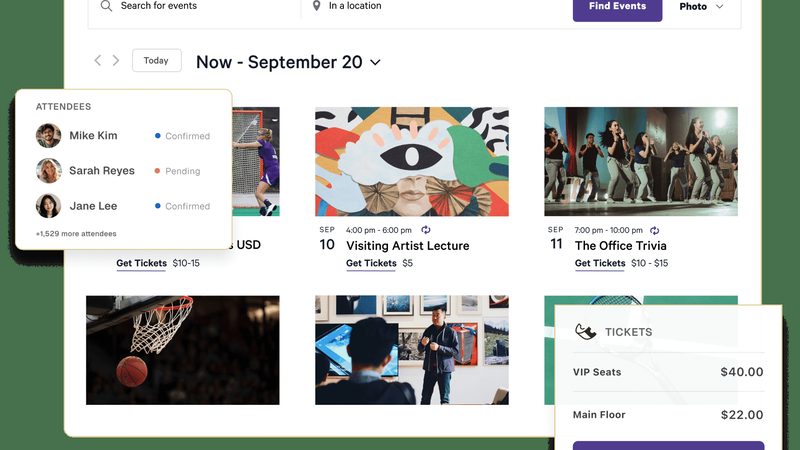
The Events Calendar is the most popular events plugin for WordPress, and its shortcodes let you display events anywhere — pages, posts, sidebars, and page builders. This guide lists every important shortcode with copy-paste examples for 2026.
The Main Shortcode: [tribe_events]
Nearly everything runs through one shortcode:
[tribe_events]
On its own it outputs the default events view. Parameters customize what appears:
[tribe_events view="list" limit="5" cat="conferences"]
Parameter Reference
| Parameter | Example | What it does |
|---|---|---|
view |
view="list" |
Display mode: list, month, or day |
limit |
limit="5" |
Maximum number of events shown |
cat |
cat="music" |
Filter by event category slug |
order |
order="ASC" |
Sort order for events |
date |
date="2026-12-01" |
Show events from a specific date |
featured |
featured="true" |
Show only featured events |
venue |
venue="main-hall" |
Filter by venue slug |
organizer |
organizer="acme" |
Filter by organizer slug |
tribe-bar |
tribe-bar="false" |
Hide the events search/filter bar |
Copy-Paste Examples
Upcoming events list:
[tribe_events view="list" limit="5"]
Full month calendar:
[tribe_events view="month"]
Events in one category:
[tribe_events cat="workshops" view="list" limit="10"]
Featured events only:
[tribe_events featured="true" view="list" limit="3" tribe-bar="false"]
Shortcodes vs Gutenberg Blocks
The Events Calendar ships with Gutenberg blocks, but shortcodes are still the better choice when you work in Elementor (Shortcode widget), Divi, the classic editor, widget areas, or PHP template files via do_shortcode(). Blocks are convenient inside the block editor; shortcodes go everywhere else.
Pro Add-On Shortcodes
Premium add-ons extend the shortcode set: Events Calendar Pro adds advanced views and recurring-event handling, while add-ons like Event Tickets embed ticket forms alongside your event listings. Check each add-on’s documentation for its exact shortcode syntax.
Styling Tips
- Wrap shortcodes in a Group block to control width and background.
- Target
.tribe-eventsclasses under Customize > Additional CSS for fonts, colors, and spacing. - Keep
limitmodest on archive-style pages for faster loads.
Troubleshooting
- Shortcode shows as plain text: make sure The Events Calendar plugin is active and you are pasting into a Shortcode block or widget, not a code block.
- Wrong events appear: check category, venue, and organizer slugs — they must match exactly.
- Styling looks off: some themes override calendar CSS; add your own rules or adjust the calendar stylesheet in the plugin settings.
Get The Events Calendar Pro
Need advanced views and premium features? Get The Events Calendar Pro at WPPlugg — GPL download with instant access.
What is the main shortcode for The Events Calendar?
[tribe_events] — it displays your events and accepts parameters for view, limit, category, and more.
How do I show upcoming events?
Use [tribe_events view=”list” limit=”5″] to display the next five upcoming events in list view.
How do I filter events by category?
Add the cat parameter with the category slug: [tribe_events cat=”slug”].
Do the shortcodes work with Elementor?
Yes — paste any Events Calendar shortcode into Elementor’s Shortcode widget (or a Text/HTML widget) and it will render on the front end.
How do I display the month view?
Use [tribe_events view=”month”] to render the full calendar month view anywhere on your site.